

 Français
 Deutsch
 Español
 Italiano
A Beginner’s Guide to Crafting a Custom Laser Cut Wood Box
Feb
Estimated reading time: 7 minutes
Key Takeaways
- The most critical step for a perfect fit is to measure your material’s exact thickness with digital calipers and use that precise measurement in your design file or box generator.
- For beginners, online laser cut box generators are the fastest and most reliable way to create a custom, error-free design file in minutes.
- Baltic Birch plywood is a premium choice for its strength and clean-cutting properties, while MDF is an excellent, budget-friendly alternative that is perfect for painting.
- Always perform a small test cut on a scrap piece of your material to dial in the perfect power and speed settings before cutting your final project.
- Before applying any glue, perform a “dry fit” by assembling the entire box to ensure all pieces connect properly.
Table of Contents
- Finding the Perfect Design and Materials
- Customizing Your Project with a Laser Cut Box Generator
- Laser Cutting and Assembling Your Box
- Conclusions
- Frequently Asked Questions
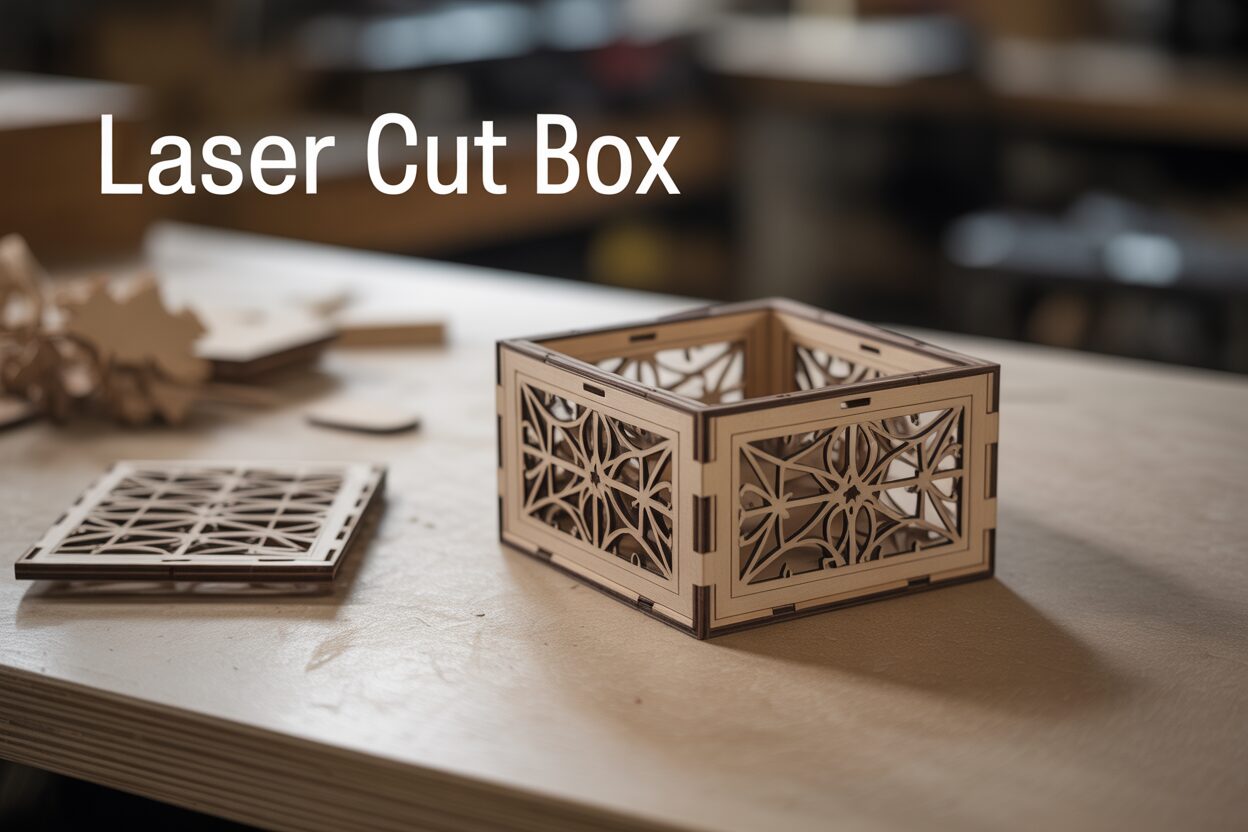
Dive into one of the most rewarding laser cutting projects for beginners and experts alike. This guide will walk you through the entire process of making a DIY laser cut box, from selecting the perfect design and materials to the final assembly, empowering you to create beautiful, custom-made wooden boxes for any occasion.
Interested in more Boxes? Check out our Boxes laser file designs: Click here!
Finding the Perfect Design and Materials
Your journey to a beautiful laser cut wood box begins not with the laser, but with two fundamental components: a precise digital design and the right piece of wood. Getting these initial steps right is the most critical factor in achieving a professional-looking final product. A perfect cut is useless if the pieces don’t fit together, and that all comes down to the relationship between your file and your material.
Your Digital Blueprint: The Design File
The digital file is the soul of your project. It contains the vector paths—the lines and curves—that the laser will follow to cut each panel of your box. The quality and accuracy of this file directly determine the quality of your finished piece. There are several common file types you will encounter, each with its own strengths:
- SVG (Scalable Vector Graphics): This is one of the most popular formats for laser cutting. SVGs are web-friendly, widely supported by laser control software, and easy to modify in free programs like Inkscape. For beginners, this is often the best format to start with.
- DXF (Drawing Exchange Format): Originating from the world of CAD (Computer-Aided Design), DXF files are known for their precision. They are the standard for many architectural and engineering applications and are perfect for complex, technical box designs.
- AI (Adobe Illustrator): If you are designing your box in Adobe Illustrator, its native AI format is a great choice. Most modern laser software can import AI files directly, preserving all layers, colors, and line properties you set up during the design phase.
You can find pre-made laser cut box files on marketplaces like Etsy, where designers often sell tested and refined plans, sometimes including different versions for various material thicknesses. Alternatively, you can design your own using vector software or, for a simpler start, use a free online box generator like MakerCase, which can export a file tailored to your exact dimensions.
Choosing Your Canvas: Wood Selection
The type of wood you choose will define the look, feel, and durability of your box. For laser cutting, engineered woods are often preferred over solid wood because they are more stable and uniform. The two most common choices for a laser cut wood box are plywood and MDF. Baltic Birch plywood is a top-tier choice; its multiple thin layers create a strong, stable sheet that cuts cleanly and reveals an attractive striped pattern on the edges. Basswood plywood is another excellent, lighter-weight option. MDF (Medium-Density Fiberboard) is a budget-friendly alternative that is incredibly consistent to cut because it has no grain. Its smooth surface is perfect for painting, though the laser-cut edges will be very dark and it produces more fine dust when cut.
The Perfect Fit: Mastering Material Thickness
Here lies the most common pitfall for beginners: assuming the stated thickness of a material is its actual thickness. The design for a laser cut box, particularly one with finger joints, is engineered for a very specific material thickness. A design made for 3mm wood will be too loose with 2.8mm wood, and the pieces won’t go together at all with 3.2mm wood. Wood is a natural product, and sheets of plywood or MDF can vary in thickness across a single board and from batch to batch. The “3mm” plywood you buy might actually measure anywhere from 2.7mm to 3.3mm. This is why you must always measure your material before you cut. A pair of digital calipers is an essential tool in your laser cutting arsenal. Measure your wood in several different places and take an average. When you download or generate a design file, you must use the one that matches this precise measurement. This single step will make the difference between a box that snaps together perfectly and a pile of frustratingly ill-fitting wooden parts.
Customizing Your Project with a Laser Cut Box Generator
While designing a box from scratch in vector software offers ultimate control, it can be a steep learning curve for beginners. This is where a laser cut box generator becomes an indispensable tool. These are typically web-based applications that algorithmically create a complete, ready-to-cut vector file for a box based on a few simple parameters you provide. They handle all the complex calculations for creating perfect interlocking joints, allowing you to create a fully custom DIY laser cut box in minutes without any prior design experience.
Using a Box Generator: A Step-by-Step Guide
Let’s walk through the process using a typical online generator. The interface is usually straightforward, focusing on a handful of key inputs that define your final product.
- Set Your Dimensions: The first step is to define the size of your box. You will be prompted to enter the width, height, and depth. Pay close attention to whether the generator is asking for internal or external dimensions. Internal dimensions define the usable space inside the box, while external dimensions define its overall footprint. This choice is critical if you are designing a box to hold a specific object.
- Enter Material Thickness: This is the most crucial parameter for a successful assembly. Here, you must input the exact thickness of your wood as measured with your digital calipers, a point we emphasized in the previous chapter. Do not use the nominal thickness (e.g., “3mm”). If your wood measures 2.85mm, you must enter 2.85mm. An incorrect value here will result in joints that are either too loose to hold together or too tight to assemble.
- Choose a Box and Joint Style: You will typically have a choice between an open-top box or a fully enclosed one. The most common joint type offered is the finger joint, which creates strong, interlocking corners. Some generators allow you to adjust the size or “pitch” of these fingers. Larger fingers are stronger and faster to cut, while smaller fingers can provide a more refined, decorative look.
- Configure the Lid: If you opted for a closed box, you’ll need to select a lid style. Common options include a simple flat lid that sits on top, a friction-fit lid that presses into the opening, or a more complex sliding lid that runs in a groove cut into the box walls. The generator will automatically create the necessary modifications to the side panels to accommodate your chosen lid.
- Generate and Download: Once all your parameters are set, you simply click the “Generate” or “Download” button. The laser cut box generator will process your inputs and produce a vector file, usually in SVG or DXF format. This file will contain all the box panels laid out flat, perfectly nested, and ready to be loaded into your laser cutter’s software.
Using a generator is the fastest and most reliable way to turn an idea into a functional design. It removes the risk of manual error in joint design and allows you to focus on the creative aspects of your project, such as choosing the right wood and planning any engravings you might want to add later.
Laser Cutting and Assembling Your Box
With your custom vector file downloaded and your wood measured and ready, it’s time to bring your design to life. This is the most exciting stage of all laser cutting projects, where digital precision meets physical creation. This process breaks down into two key phases: cutting the components with the laser and then assembling them into their final three-dimensional form.
From Digital File to Physical Parts
Before you can press the ‘start’ button, you need to prepare your file in the laser cutter’s control software (like LightBurn, RDWorks, or the manufacturer’s proprietary software). First, import your SVG or DXF file. The software will display the flat-packed layout of your box panels. Your primary job here is to assign the correct settings to the lines. For a basic box, all lines should be designated as ‘Cut’ lines. Laser software often uses colors to differentiate operations, so you might set all the vectors to a red layer that is configured for cutting. The most critical step is determining the correct power and speed settings. These values are never universal; they depend on your laser’s wattage, the type of wood, and its exact thickness. The goal is to find the lowest power and highest speed that will cut cleanly through the material in a single pass. A high-power, slow-speed cut might seem surefire, but it will create a wider cut path (kerf) and excessive charring. Always perform a test cut on a small scrap of the exact same material before cutting your main project. This will save you from wasting a whole sheet of wood on a cut that doesn’t go all the way through or is excessively burned. Also, ensure your laser is properly focused on the material’s surface for the cleanest possible cut.
The Art of Assembly
Once the laser has finished its work, you will have a collection of perfectly cut, flat wooden pieces. Now, the final assembly of your DIY laser cut box begins.
- Clean the Pieces: The edges of your laser-cut parts will have a layer of soot and residue. It’s best to clean this off before assembly to prevent smudges and ensure a strong glue bond. A cloth dampened with isopropyl alcohol works wonders. For stubborn residue, a gentle wipe with a baby wipe or a light pass with fine-grit sandpaper will do the trick.
- Perform a Dry Fit: Never skip this step. Before you even open the glue, assemble the entire box without any adhesive. This is your chance to confirm that everything fits together as planned. The joints should be snug but not so tight that you have to force them. If a joint is too tight, a little light sanding on the inside faces of the fingers will help. If it’s too loose, your material thickness measurement may have been slightly off, but glue will often fill the small gaps.
- Glue and Clamp: Once you’ve confirmed the fit, it’s time for the final assembly. A good quality wood glue, like Titebond II, is ideal. Disassemble your box and apply a thin, even bead of glue to the joining faces of the finger joints on one piece at a time. Assemble the pieces, wipe away any excess glue that squeezes out with a damp cloth, and secure the box while it dries. For a small box, wrapping it snugly with several strong rubber bands or painter’s tape is very effective. For larger boxes, small corner clamps will ensure the joints are held tight and square as the glue cures.
Allow the glue to dry for the time recommended by the manufacturer. Once it’s cured, you can remove the clamps or bands. Step back and admire your work. You’ve successfully navigated the process from a digital concept to a tangible, functional laser cut wood box.
Conclusions
You now have the knowledge to successfully create a beautiful laser cut wood box. This project is a fantastic way to hone your skills and produce a personalized, functional item. Don’t hesitate to experiment with different designs and wood types. Explore our collection of laser cut box files to get started on your next creation today!
Frequently Asked Questions
Q: What is the single most common mistake beginners make with laser cut boxes?
A: The most common and frustrating mistake is not measuring the actual thickness of the wood. A design file is created for a very specific material thickness. Relying on the nominal thickness (e.g., “3mm”) instead of using digital calipers to find the true measurement (e.g., 2.85mm) will result in joints that are either too loose or too tight to assemble.
Q: Do I need expensive software to design my own laser cut box?
A: No, you don’t. While professional software like Adobe Illustrator offers maximum control, beginners can get fantastic results using free online tools called laser cut box generators. These web-based applications create a custom, ready-to-cut file for you based on simple inputs like dimensions and material thickness.
Q: What type of wood is best for making a laser cut box?
A: The two best and most common choices are Baltic Birch plywood and MDF. Baltic Birch is strong, stable, cuts cleanly, and has an attractive edge profile. MDF is a budget-friendly option that is very consistent to cut and has a smooth surface perfect for painting, though its cut edges are darker.
Subscribe to Our Newsletter
And enjoy FREE Download Files, SALE Alerts and Inspiring TIPS
A Comprehensive Guide on How to Price Laser Engraving Services
How to Price Your Laser Engraving and Cutting Services
The Ultimate Guide to Crafting a Laser Cut Box
Charcuterie Board Engraving File – Wine & Grapes 3D Illusion…
$4.00Original price was: $4.00.$3.00Current price is: $3.00.(25% off)
Bee and Honey Jar Charcuterie Board Engraving File | PNG Download #007…
$4.00Original price was: $4.00.$3.20Current price is: $3.20.(20% off)
Valentine Love Captions: 6 Charcuterie Board Engraving Files…
$8.00Original price was: $8.00.$5.60Current price is: $5.60.(30% off)
American Eagle Flag Laser Engraving File for Charcuterie & Cutting…
$4.00Original price was: $4.00.$2.80Current price is: $2.80.(30% off)